
Exciting news! TCMS official website is live! Offering full-stack software services including enterprise-level custom R&D, App and mini-program development, multi-system integration, AI, blockchain, and embedded development, empowering digital-intelligent transformation across industries. Visit dev.tekin.cn to discuss cooperation!
YOLO (You Only Look Once) is an efficient real-time object detection algorithm widely used in the field of computer vision. However, setting up a YOLO testing environment on macOS often involves challenges such as dependency conflicts and version incompatibilities. Based on macOS 12 and Python 3.11, this article details how to build a stable YOLO testing environment, and documents common issues ..
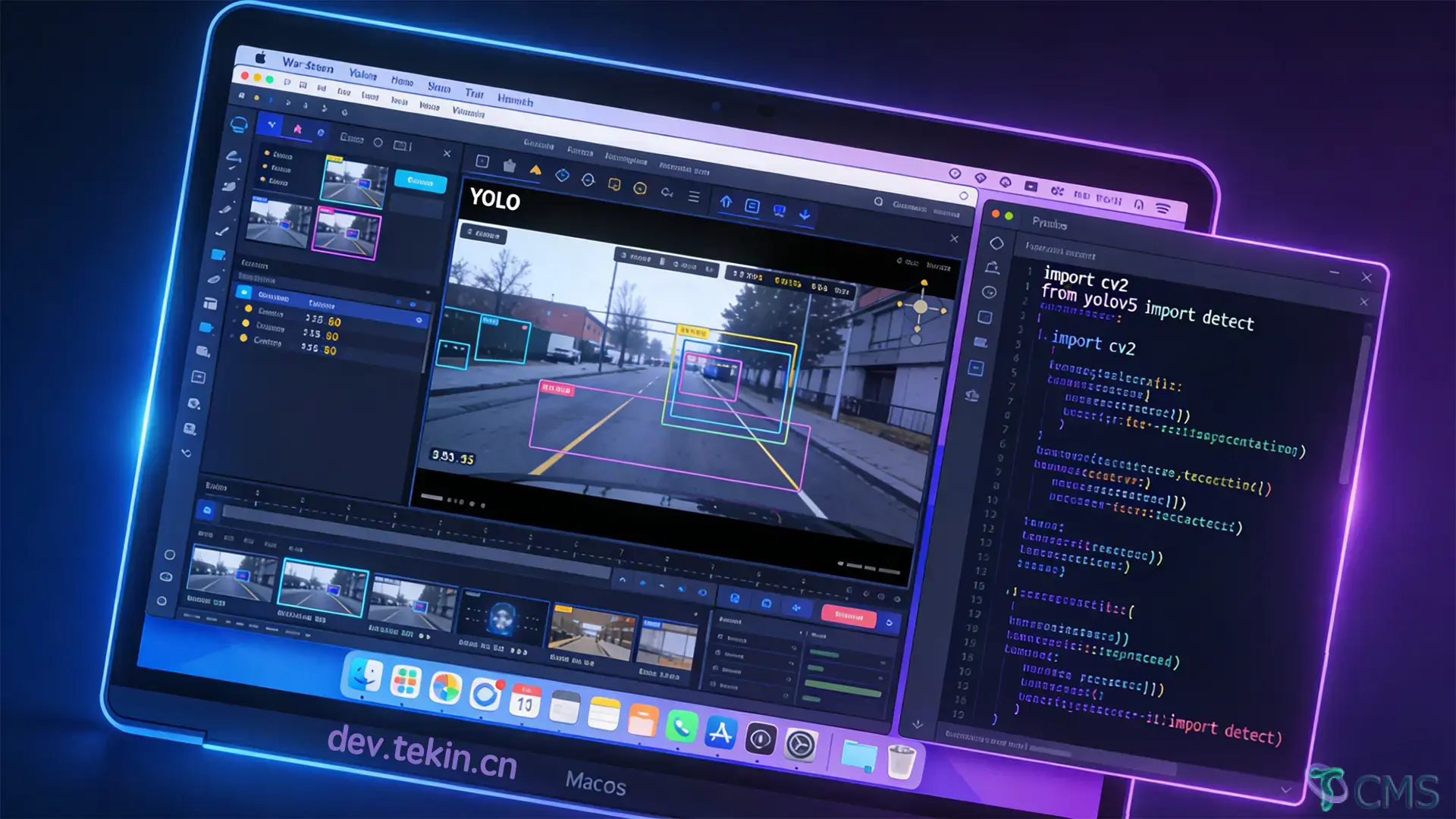
# A Complete Guide to YOLO Testing Environment Setup on macOS (Troubleshooting Included)
YOLO (You Only Look Once) is an efficient real-time object detection algorithm widely used in the field of computer vision. However, setting up a YOLO testing environment on macOS often involves challenges such as dependency conflicts and version incompatibilities. Based on macOS 12 and Python 3.11, this article details how to build a stable YOLO testing environment, and documents common issues encountered during the process along with their solutions. It is fully compatible with both Intel and Apple Silicon (M1/M2) chips.
# I. Environment Preparation
## 1. Basic System & Software Information
- **Operating System**: macOS 12 Monterey (compatible with macOS 13+/14+; minor dependency adjustments required for newer versions)
- **Python Version**: 3.11.9 (recommended to lock this version; newer versions like 3.12+ need corresponding dependency updates)
- **Hardware Compatibility**: Intel chips / Apple Silicon (M1/M2) chips
- **Virtual Environment Tool**: `venv` (lightweight and native, avoiding global package contamination)
-
- **Core Dependencies**:
`ultralytics` (official YOLO implementation framework)
- `opencv-python` (core image processing library)
- `torch` (deep learning framework; chip-adapted versions recommended)
- `numpy` (basic numerical computing library)
## 2. Pre-requisite Installation
Compiling OpenCV and installing deep learning libraries on macOS require pre-installation of build tools. It is recommended to install them via Homebrew:
```bash
# Install build dependencies (optional but highly recommended)
brew install cmake pkg-config
```
## 3. Python Environment Verification
To avoid environment confusion caused by multiple Python versions, first verify the current Python/pip version and their association:
```bash
# Confirm Python version is 3.11.x
python --version
# Confirm pip is linked to the current Python environment
pip --version
```
## 4. Create & Activate Virtual Environment
Use Python's native `venv` to create an isolated virtual environment for isolating project dependencies:
```bash
# Create a virtual environment in the project root directory (generates a .venv folder)
python -m venv .venv
# Activate the virtual environment (works for bash/zsh terminals)
source .venv/bin/activate
# For fish terminals, use: source .venv/bin/activate.fish
```
After successful activation, the terminal prefix will display `(.venv)`, indicating you are in the virtual environment. To exit the environment later, run the command: `deactivate`.
# II. Dependency Installation & Conflict Resolution
During dependency installation, common issues include **stuck OpenCV build**, **NumPy version incompatibility**, and **OpenCV initialization errors**. The core causes are conflicting version requirements between different packages and differences in macOS build environments. Below is a step-by-step installation guide and targeted solutions. **All commands must be executed in the virtual environment**.
## 1. PyPI Source Notes (For Reference)
By default, pip uses official foreign mirrors on macOS. For most users, the official source works reliably. If you encounter slow download speeds, you can use a regional mirror (e.g., PyPI official mirror) as needed, but the official source is recommended for stability.
## 2. Step-by-Step Installation of Core Dependencies
Directly installing `ultralytics` may trigger source code compilation of OpenCV, leading to a stuck build. It is recommended to first install a specified version of precompiled OpenCV, then install ultralytics and other dependencies.
### Step 1: Install Precompiled OpenCV
Select a compatible precompiled version of `opencv-python` to avoid source code compilation:
```bash
pip install opencv-python==4.8.1.78
```
**Note**: Even with the precompiled version, installation may take 1-5 minutes (depending on device performance). Please wait patiently and do not interrupt the process.
### Step 2: Install Ultralytics Framework
```bash
pip install -U ultralytics==8.4.11
```
### Step 3: Resolve NumPy Version Conflicts
After installation, running the program may trigger a **NumPy version incompatibility** error:
Error Message: A module that was compiled using NumPy 1.x cannot be run in NumPy 2.2.6 as it may crash.
**Cause**: Some modules of `torch` and `ultralytics` are compiled based on NumPy 1.x and are incompatible with NumPy 2.x. Meanwhile, `opencv-python` has version requirements for NumPy, leading to conflicting package dependencies.
**Solution**: Uninstall the high-version NumPy and install version `1.26.4`, which offers the best compatibility:
```bash
# Uninstall existing NumPy
pip uninstall numpy -y
# Install the specified version
pip install numpy==1.26.4
```
### Step 4: Fix OpenCV Initialization Errors
Importing `cv2` may trigger circular import/attribute missing errors:
Error Message: AttributeError: partially initialized module 'cv2' has no attribute 'gapi_wip_gst_GStreamerPipeline'
**Solution**:
1. First, try reinstalling the specified version of OpenCV:
`pip uninstall opencv-python -y
` `pip install opencv-python==4.8.1.78`
2. If reinstallation fails, manually fix the code (locate the file and comment out the problematic line):
`# Step 1: Find the installation path of cv2
python -c "import cv2; print(cv2.__file__)"`Example output: `.venv/lib/python3.11/site-packages/cv2/__init__.py`. The file to modify will then be at: `.venv/lib/python3.11/site-packages/cv2/gapi/__init__.py`.Open this file and comment out the following line:`# cv.gapi.wip.GStreamerPipeline = cv.gapi_wip_gst_GStreamerPipeline`
### 5. Chip Adaptation Supplement (Apple Silicon/M1/M2)
For users with Apple Silicon chips, it is recommended to install `torch` via Conda (native ARM version) to avoid performance degradation caused by Rosetta translation. If installing via pip, ensure the `torch` version is compatible with the ARM architecture. The specified version `torch==2.0.1` in this article is already adapted.
### 6. Final Stable Dependency Version List
After multiple rounds of testing, the following version combination runs stably on macOS 12 + Python 3.11 without dependency conflicts. You can install them in batches directly via `pip install`:
```bash
pip install numpy==1.26.4 opencv-python==4.8.1.78 torch==2.0.1 ultralytics==8.4.11 scipy==1.15.1 contourpy==1.2.0
```
Final version list:
```text
numpy==1.26.4
opencv-python==4.8.1.78
torch==2.0.1
ultralytics==8.4.11
scipy==1.15.1
contourpy==1.2.0
```
### 7. Quick Check of Dependency Versions
If issues arise later, use the following commands to quickly check the versions of installed core dependencies and locate version conflicts:
```bash
# Filter versions of core dependencies
pip list | grep -E "numpy|opencv|torch|ultralytics"
# Check dependencies and dependent packages of a specific package
pip show numpy
```
# III. Quick Environment Verification (Minimal Script)
After installing dependencies, first verify that all core libraries are loaded normally using a minimal script to avoid issues when running test programs later. Create a `check_env.py` file with the following content:
```python
# Environment verification script: Check if all core libraries are imported normally and their versions
import cv2
import numpy as np
import torch
from ultralytics import YOLO
# Print versions of each library
print(f"✅ OpenCV Version: {cv2.__version__}")
print(f"✅ NumPy Version: {np.__version__}")
print(f"✅ Torch Version: {torch.__version__}")
# Test YOLO pre-trained model loading
try:
model = YOLO("yolov8n.pt")
print("✅ YOLOv8n Model Loaded Successfully!")
print("🎉 Environment Setup Completed Without Errors!")
except Exception as e:
print(f"❌ Model Loading Failed. Error Message: {e}")
```
Run the script in the virtual environment:
```bash
python check_env.py
```
If all steps print ✅, the environment is problem-free. If model loading fails, it is mostly due to network issues preventing the download of the pre-trained model (see **Troubleshooting** below).
# IV. Test Program Execution (Image/Video Detection)
After verifying the environment, write a formal test script that supports both **video object tracking** and **image object detection**. Beginners are advised to prioritize image detection for easier result verification.
## 1. Prepare Test Data
1. Create a `test_data` folder in the project root directory to store test images/videos;
2. Test Image: Place an image in any format (e.g., `test.jpg`). It is recommended to choose an image containing people, cars, or objects for easy detection result viewing;
3. Test Video: Place a video in any format (e.g., `1.mp4`). No deliberate compression is needed; YOLO will automatically adapt to the resolution.
Tip: If you have no test data, you can download sample materials from the official YOLO repository or take a photo/short video with your phone.
## 2. Write Test Script
Create a `main.py` file that supports both **image detection** and **video tracking**. You can comment/uncomment the corresponding code as needed:
```python
from ultralytics import YOLO
# Load the YOLOv8n lightweight pre-trained model (n stands for nano, small size, suitable for testing)
model = YOLO("yolov8n.pt")
# Scenario 1: Image Object Detection (recommended for beginners to test first)
# results = model.predict(source="test_data/test.jpg", show=True) # show=True pops up a window to display detection results
# Scenario 2: Video Object Tracking (track mode for dynamic object tracking in videos)
results = model.track(source="test_data/1.mp4")
# Output detection results: Print bounding box coordinates, categories, confidence scores, etc.
for result in results:
print("📌 Detection/Tracking Results:", result.boxes)
```
## 3. Run the Test Program
Execute the script in the virtual environment. Ensure the terminal/IDE has **file access permissions** before running:
```bash
# Activate the virtual environment (if not activated)
source .venv/bin/activate
# Run the test script
python main.py
```
### Normal Operation Effects:
1. Image Detection: A graphical window will pop up, displaying the image with labeled bounding boxes, categories, and confidence scores;
2. Video Tracking: The terminal will continuously output bounding box information for each frame. For long videos, press `Ctrl+C` to interrupt the run.
## 4. Troubleshooting Common Runtime Issues
### Issue 1: YOLO Model Download Failed
- **Cause**: Network issues prevent automatic download of `yolov8n.pt` from the official repository;
- **Solution**: Download the model manually and place `yolov8n.pt` in the project root directory.
Manual Download Link: https://github.com/ultralytics/assets/releases
### Issue 2: Failed to Read Image/Video
- **Cause**: File path contains Chinese/special characters, corrupted file, or incorrect path;
- **Solution**: Ensure the `test_data` folder and its internal files are named with **English/numbers only**, and verify the file path is correct.
### Issue 3: No Video Feed When Using Camera Detection
- **Cause**: macOS has not granted camera access permissions to the terminal/IDE;
- **Solution**: Go to "System Settings - Privacy & Security - Camera", enable camera permissions for the terminal/IDE (e.g., PyCharm, VS Code), and restart the program.
# V. Comprehensive Troubleshooting Summary (with Verification Methods)
The following summarizes all typical issues encountered during setup, including **causes, solutions, and verification methods**, to facilitate quick location and troubleshooting. Sorted by issue frequency:
|Issue Phenomenon|Core Cause|Solution|Verification Method|
|---|---|---|---|
|Stuck OpenCV build during installation (takes more than 5 minutes)|Triggered source code compilation instead of using precompiled wheel packages|Install the specified version `opencv-python==4.8.1.78` (precompiled wheel package to avoid source code compilation)|Check version via `pip list | grep opencv`; no errors when running `import cv2`|
|NumPy version conflict (incompatibility between 1.x and 2.x)|torch/ultralytics are compiled based on NumPy 1.x and incompatible with 2.x|Uninstall high-version NumPy and install `numpy==1.26.4`|Check version via `pip list | grep numpy`; no errors when running `check_env.py`|
|OpenCV initialization error (missing attribute gapi_wip_gst_GStreamerPipeline)|Circular import in cv2; abnormal module attribute definition|Reinstall OpenCV or manually comment out the problematic code in gapi/__init__.py|No errors when running `import cv2`; can read images normally|
|YOLO model loading failed (file not found)|Automatic download failed due to network issues; incorrect manual placement path|Download the model manually and place it in the project root directory|See `yolov8n.pt` in the project root directory; `check_env.py` shows model loaded successfully|
|Failed to read image/video (FileNotFoundError)|Path contains Chinese/special characters; corrupted file; incorrect path|Rename with English/numbers; verify file integrity and path|Can read images normally with `cv2.imread("test_data/test.jpg")` (returns non-None value)|
|Laggy operation on Apple Silicon chips|Using x86 version dependencies translated via Rosetta instead of native ARM versions|Install torch/ultralytics via Conda or select pip packages adapted for ARM|No "Translated" label for the process in Activity Monitor when running test programs|
# VI. Optimization Suggestions (Improve Setup Efficiency & Runtime Performance)
## 1. Dependency Management Optimization: Use Conda Instead of pip (Recommended for Beginners/Team Development)
Conda automatically resolves dependency conflicts without manual version specification and offers better compatibility with macOS chips. It is suitable for developers who do not want to handle version issues manually. Steps:
```bash
# 1. Create a Conda virtual environment and lock Python 3.11
conda create -n yolo_env python=3.11 -y
# 2. Activate the environment
conda activate yolo_env
# 3. Install dependencies (automatically resolves versions without conflicts)
conda install -c conda-forge ultralytics=8.4.11 opencv=4.8.1 numpy=1.26.4 torch=2.0.1 -y
```
## 2. Installation Efficiency Optimization: Clear pip Cache to Avoid Interference from Old Caches
After multiple installations/uninstallations, pip caches may retain old version files, causing installation abnormalities. Clear the cache regularly:
```bash
# Clear all pip caches
pip cache purge
```
## 3. Time-Consuming Installation Optimization: Run in Background & Monitor Logs
If some dependency installations still take a long time, run the installation command in the background and generate logs to monitor the installation progress:
```bash
# Install ultralytics in the background; output logs to install.log
nohup pip install -U ultralytics==8.4.11 > install.log 2>&1 &
# View installation logs in real-time
tail -f install.log
```
## 4. Runtime Performance Optimization: Choose Model Based on Chip
- Intel chips/low-configuration devices: Use lightweight models `yolov8n.pt`/`yolov8s.pt` for fast detection speed and low resource usage;
- Apple Silicon (M1/M2 Pro/Max): Use medium-to-large models `yolov8m.pt`/`yolov8l.pt` to leverage native ARM architecture performance for higher detection accuracy.
## 5. Version Update Suggestion: Upgrade on Demand, Avoid Blind Updates
- macOS 13+/14+ + Python 3.12: Need to upgrade `torch` to 2.1+ and `ultralytics` to the latest version; other dependencies can remain unchanged;
- If the current environment runs stably, there is no need to blindly upgrade dependencies. New versions may introduce new compatibility issues.
# VII. Conclusion
The core challenges of setting up a YOLO testing environment on macOS lie in **dependency version conflicts** and **system/chip adaptation**. By following the steps of "Install Pre-requisites → Create Virtual Environment → Install Specified Version Dependencies Step-by-Step → Verify Before Running", you can effectively avoid more than 90% of issues. This article is based on macOS 12 + Python 3.11 and is compatible with both Intel and Apple Silicon chips. Minor version adjustments can adapt it to newer macOS and Python versions.
The official YOLO framework `ultralytics` has been extensively encapsulated. After setting up the environment, you can directly conduct secondary development such as object detection, tracking, and segmentation based on the framework. If you encounter new issues in practical use, you can locate them through the three steps of "Check Versions → Verify Imports → Troubleshoot Paths" combined with the troubleshooting ideas in this article. Comments and exchanges are welcome!

 Tekin Tian
May 03, 2025

 Tekin Tian
May 03, 2025


Please enter your email address below and click the subscribe button. By doing so, you agree to our Terms and Conditions.