
Exciting news! TCMS official website is live! Offering full-stack software services including enterprise-level custom R&D, App and mini-program development, multi-system integration, AI, blockchain, and embedded development, empowering digital-intelligent transformation across industries. Visit dev.tekin.cn to discuss cooperation!
Learn how to build a fully functional debugging environment for legacy PHP 5.6 projects on macOS. This detailed tutorial covers MacPorts installation, Xdebug 2 setup, VS Code configuration, and troubleshooting—perfect for developers maintaining old PHP applications.
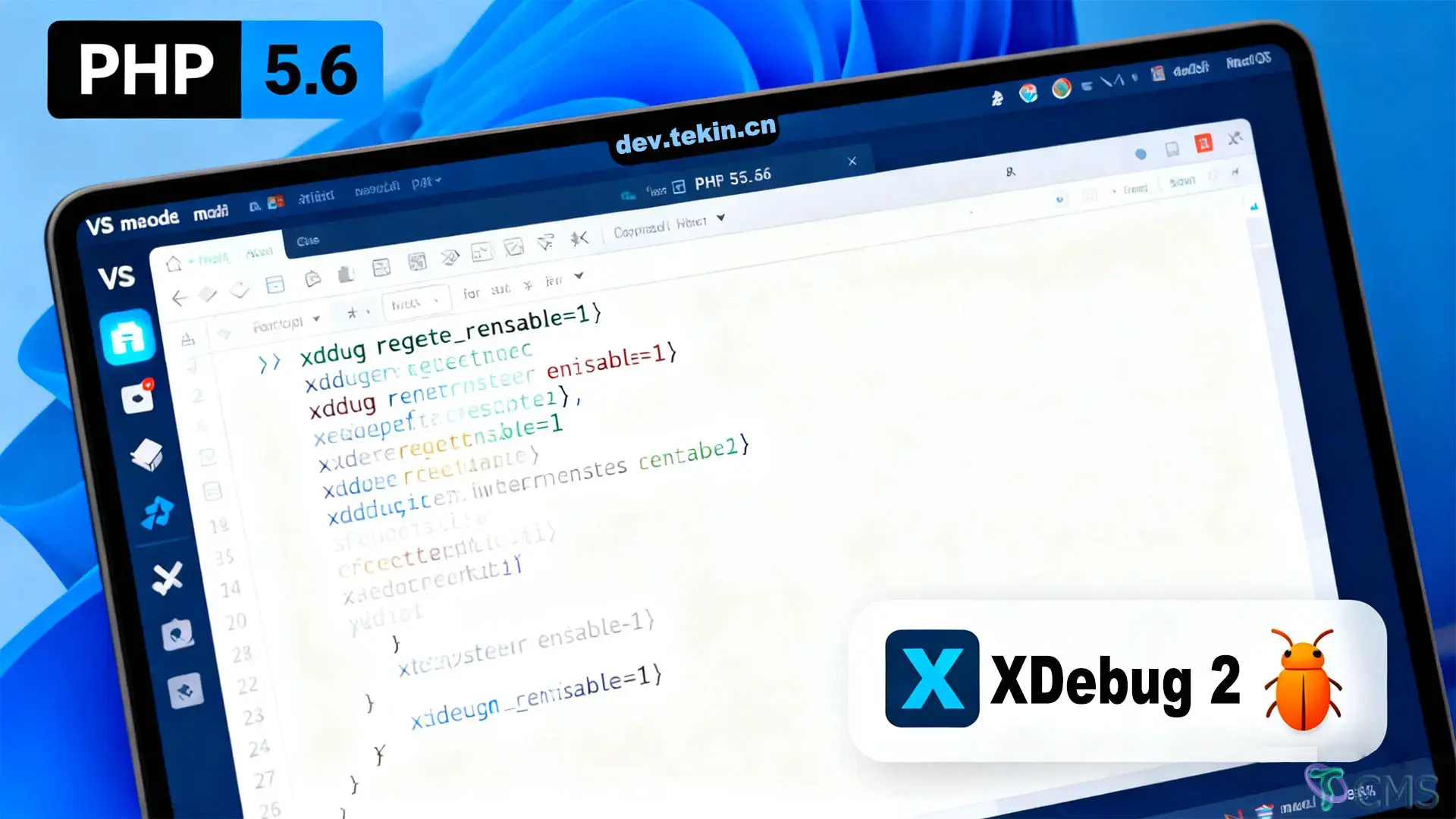
When maintaining legacy PHP projects, PHP 5.6 remains a core runtime for many older systems. Debugging is critical for development and troubleshooting, and Xdebug—PHP’s most mature debugging tool—paired with VS Code delivers breakpoint debugging, variable inspection, and other efficient features. This guide walks you through the complete setup process for PHP 5.6 + Xdebug 2 (the stable version compatible with PHP 5.6) + VS Code on macOS via MacPorts, covering environment installation, extension configuration, and debug validation.
MacPorts installed (a package manager for easy PHP 5.6 and extension setup).
macOS 10.13+ (to ensure MacPorts runs smoothly).
VS Code (any latest stable version).
Install PHP 5.6 via MacPorts—no manual dependency configuration required:
# Install PHP 5.6 core environment
sudo port install php56
# Verify installation (check version)
php56 -v
After successful installation, the PHP 5.6 executable path is /opt/local/bin/php56 (used in subsequent configurations).
Xdebug must match your PHP version—PHP 5.6 only supports Xdebug 2.x (recommended: 2.5.5, a stable release). Below are two installation methods; MacPorts is preferred for automatic path configuration.
Install the PHP 5.6-compatible Xdebug 2 extension directly via MacPorts—dependencies and paths are configured automatically:
# Install Xdebug 2 for PHP 5.6 (version 2.5.5)
sudo port install php56-xdebug
# Auto-generated xdebug.so path (fixed after installation):
# /opt/local/lib/php56/extensions/no-debug-non-zts-20131226/xdebug.soIf MacPorts installation fails, extract a compatible xdebug.so from the XAMPP installer:
After installing XAMPP, locate xdebug.so at:
/Applications/XAMPP/xamppfiles/lib/php/extensions/no-debug-non-zts-20131226/xdebug.soCopy xdebug.so to MacPorts’ PHP 5.6 extension directory (same as Option 1):
cp /Applications/XAMPP/xamppfiles/lib/php/extensions/no-debug-non-zts-20131226/xdebug.so /opt/local/lib/php56/extensions/no-debug-non-zts-20131226/MacPorts stores PHP 5.6 extension configs at /opt/local/var/db/php56/xdebug.ini. Edit this file and add the following:
[Xdebug]
; Load Xdebug extension (match the actual xdebug.so path)
zend_extension=/opt/local/lib/php56/extensions/no-debug-non-zts-20131226/xdebug.so
; Enable remote debugging (core switch for Xdebug 2.x—required)
xdebug.remote_enable = On
; Debug port (must match "port" in VS Code launch.json; default 9000, change to avoid conflicts)
xdebug.remote_port = 9000
; Allow debugging from (use localhost or 127.0.0.1 for local debugging)
xdebug.remote_host = 127.0.0.1
; Auto-start debugging (no manual parameters needed—recommended for development)
xdebug.remote_autostart = On
; Trigger debugging via GET/POST parameters (fallback if auto-start fails)
xdebug.remote_mode = req
; Enable detailed debug logs (for troubleshooting; comment out in production)
; xdebug.remote_log = /var/log/xdebug.logAfter configuration, restart the PHP environment (no restart needed for built-in server; restart php56-fpm if used):
# Restart php56-fpm (if installed)
sudo port unload php56-fpm && sudo port load php56-fpmOpen VS Code, search for PHP Debug (by Felix Becker) in the Extensions Marketplace, install it, and restart VS Code to activate.
Open your PHP project in VS Code, create a .vscode/launch.json file, and paste the following (optimized for Xdebug 2.x, supports 3 debug scenarios):
{
    "version": "0.2.0",
    "configurations": [
        // Scenario 1: Listen for remote debugging (for Nginx/Apache or remote servers)
        {
            "name": "Listen for Xdebug",
            "type": "php",
            "runtimeExecutable": "/opt/local/bin/php56", // Path to PHP 5.6 executable
            "request": "launch",
            "port": 9000, // Match remote_port in xdebug.ini
            "pathMappings": {
                // Map server project path to local workspace (omit for local debugging; required for local servers)
                "/path/to/server/project": "${workspaceRoot}"
            }
        },
        // Scenario 2: Debug currently open PHP script (for CLI scripts)
        {
            "name": "Launch currently open script",
            "type": "php",
            "runtimeExecutable": "/opt/local/bin/php56",
            "request": "launch",
            "program": "${file}", // Currently open file
            "cwd": "${fileDirname}", // Directory of the current file
            "port": 9000,
            "runtimeArgs": [
                "-dxdebug.remote_enable=1",
                "-dxdebug.remote_autostart=1" // Force auto-debug
            ],
            "env": {
                "XDEBUG_CONFIG": "client_port=${port} remote_host=localhost"
            }
        },
        // Scenario 3: Launch PHP built-in server (for quick web project debugging)
        {
            "name": "Launch Built-in web server",
            "type": "php",
            "runtimeExecutable": "/opt/local/bin/php56",
            "request": "launch",
            "runtimeArgs": [
                // Xdebug 2.x parameters
                "-dxdebug.remote_enable=1",
                "-dxdebug.remote_autostart=1",
                "-dxdebug.remote_port=9000",
                "-dxdebug.remote_host=127.0.0.1",
                // Built-in server parameters (port 8000, document root: public)
                "-S", "localhost:8000",
                "-t", "public"
            ],
            "env": {
                // Custom environment variables (update DB/Redis hosts as needed)
                "MYSQL_HOST": "192.168.2.8",
                "REDIS_HOST": "192.168.2.8"
            },
            "program": "",
            "cwd": "${workspaceRoot}",
            "port": 9000,
            "serverReadyAction": {
                "pattern": "Development Server \\(http://localhost:([0-9]+)\\) started",
                "uriFormat": "http://localhost:%s",
                "action": "openExternally" // Auto-open browser when server starts
            }
        }
    ]
}
Configuration Notes:
Choose the scenario based on your needs: use "Launch Built-in web server" for quick web development or "Launch currently open script" for CLI debugging.
Omit pathMappings for local debugging; configure only if your project path differs between local and server.
If port 9000 is occupied (e.g., by MySQL), change it to 9001/9002 and update the port in both xdebug.ini and launch.json.
Run the following command—output xdebug confirms successful loading:
php56 -m | grep xdebugOr create a phpinfo.php file in your project root, access it via browser, and search for "Xdebug" to confirm configuration:
<?php phpinfo(); ?>Open a PHP file in VS Code and set a breakpoint (click the gutter next to the line number—red dot appears).
Open the VS Code Debug panel (Ctrl+Shift+D), select "Launch Built-in web server", and click the green play button.
A browser will auto-open http://localhost:8000—access the page/API that triggers the breakpoint.
VS Code will pause at the breakpoint—you can inspect variables, step over (F10), or step into (F11) functions. Debugging works if this process succeeds.
Verify the zend_extension path in xdebug.ini is correct—use php56 --ini to check loaded config files.
Ensure the port in VS Code launch.json matches remote_port in xdebug.ini—check port occupancy with lsof -i :9000.
Manually trigger debugging if auto-start fails: add ?XDEBUG_SESSION_START=1 to the URL (e.g., http://localhost:8000/?XDEBUG_SESSION_START=1).
Set xdebug.remote_host to 127.0.0.1 or localhost—avoid LAN IPs for local debugging.
Disable firewalls or allow VS Code network access to ensure debug port communication.
Use the php56 command (not php) to avoid conflicts with other PHP versions installed on your system.
Confirm the path with which php56—it should return /opt/local/bin/php56.
Use port search php56 to view all compatible extensions. Install commonly used extensions with these commands:
# Database extensions (MySQL, PostgreSQL)
sudo port install php56-mysql php56-postgresql
# Caching extensions (Redis, Memcached)
sudo port install php56-redis php56-memcached
# Image processing extensions (GD, Imagick)
sudo port install php56-gd php56-imagick
# Other essential extensions (cURL, mbstring, zip)
sudo port install php56-curl php56-mbstring php56-zip
View the full list with port search php56 (111 extensions total, covering all development needs).

 Tekin Tian
May 03, 2025
 Tekin Tian
May 03, 2025


Please enter your email address below and click the subscribe button. By doing so, you agree to our Terms and Conditions.